

Certificates for Your Courses
With the new Certificates, your members receive personalized proof of course completion or a passed exam. Design the certificate yourself and decide when it is issued.
Design Certificates in Your Own Style
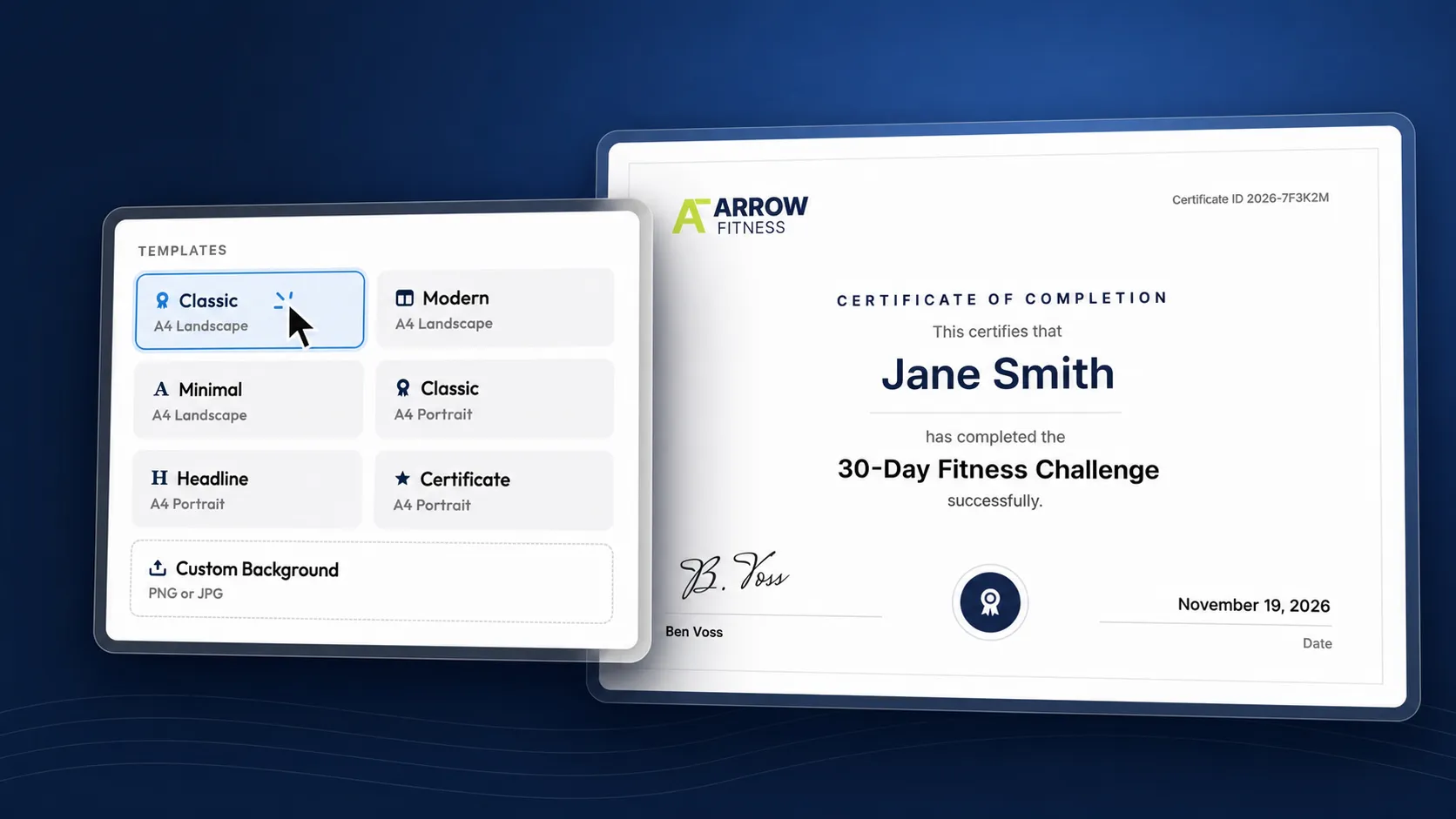
Under Settings → Certificates, you can create a template to use across multiple courses. Choose a design, customize the text, and add your logo or signature. If you already have your own certificate design, upload it as a background and place the fields on it using drag and drop.
When a certificate is issued, the name and course title are added automatically. You decide which additional details appear on the certificate, such as the completion date, certificate ID, or exam result.
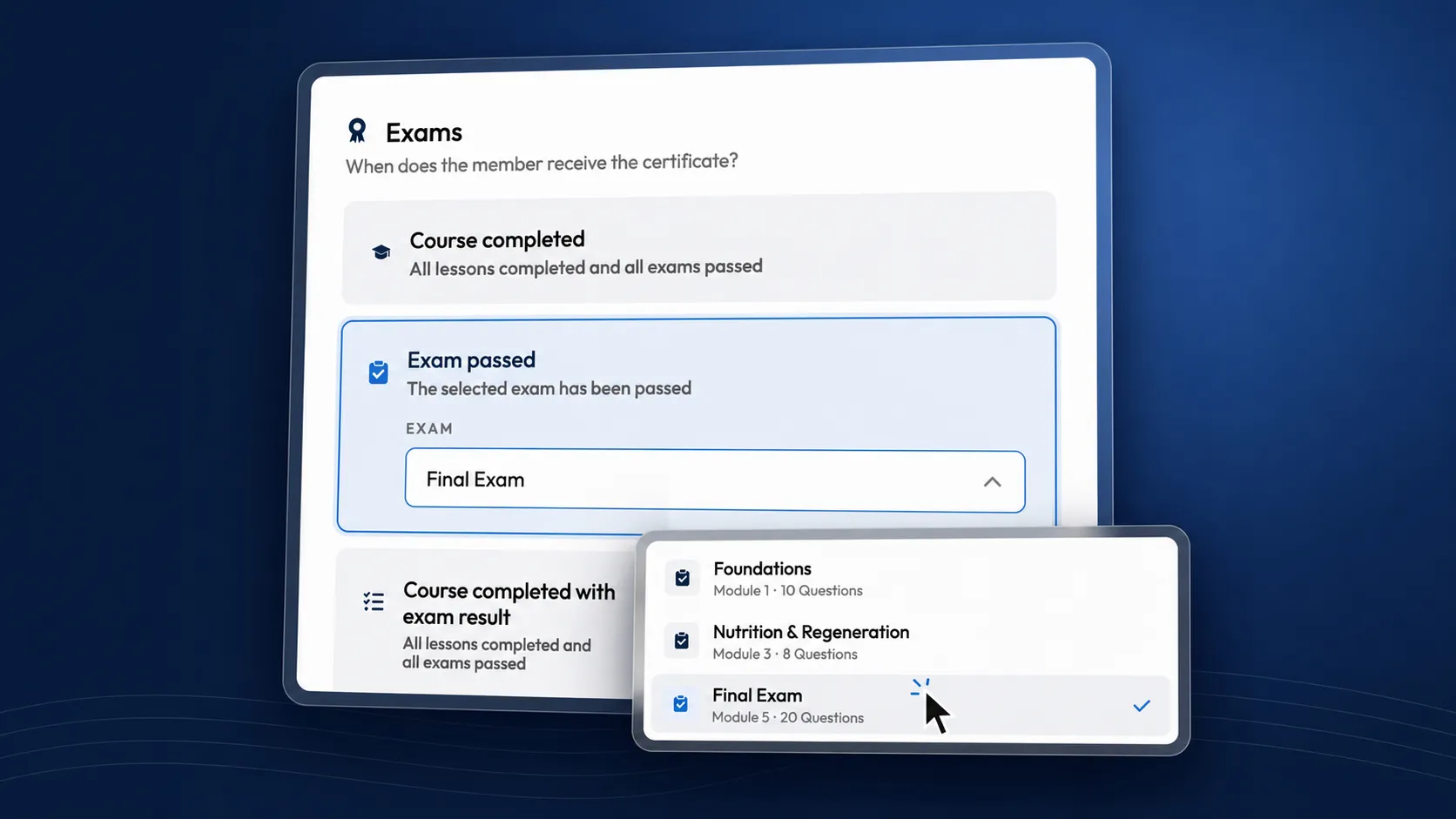
Set When a Certificate Is Issued
Add a certificate to your course and select the right template. If it should confirm completion of the entire course, the member receives their certificate once they have completed all lessons and passed the included exams.
You can also tie issuing the certificate to a single exam. In that case, the first passed attempt is enough. If the certificate should confirm the entire course and also show the score achieved in an exam as a percentage, select “Course completed with exam result” and choose the desired exam.
Click “Update Course” to activate the certificate. If members already meet the requirement, you can also issue it to them retroactively in this step.
Download Certificates in Your Course
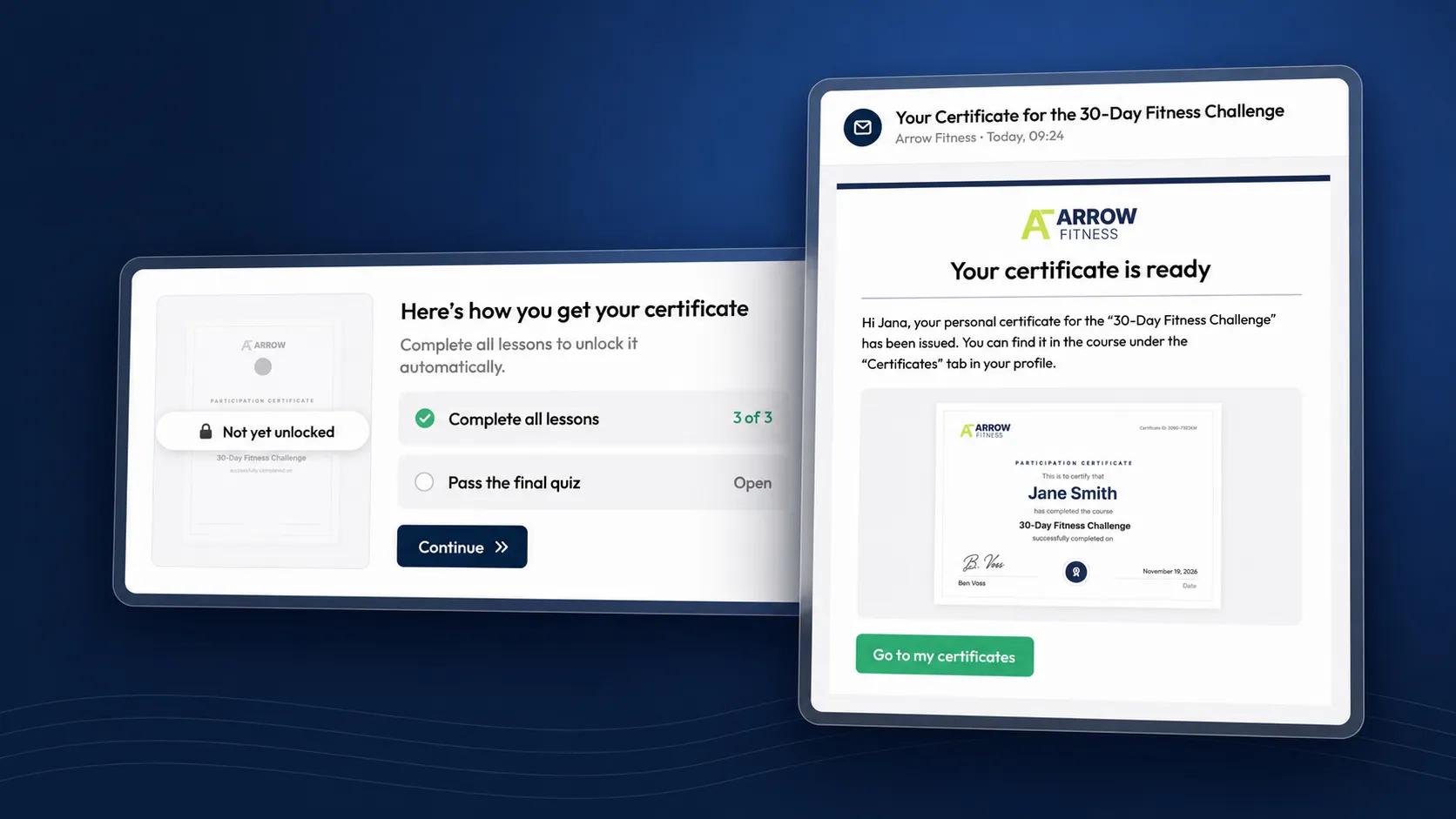
In the course, your members can see which requirements they have already met and what is still outstanding. Once issued, they can download their certificate directly as a PDF. They can also find their certificates later under My Account → Certificates.
If you wish, your members can also receive the PDF by email. Customize the accompanying text in the email editor.