.svg)
AI Update: LearningSuite Wizard
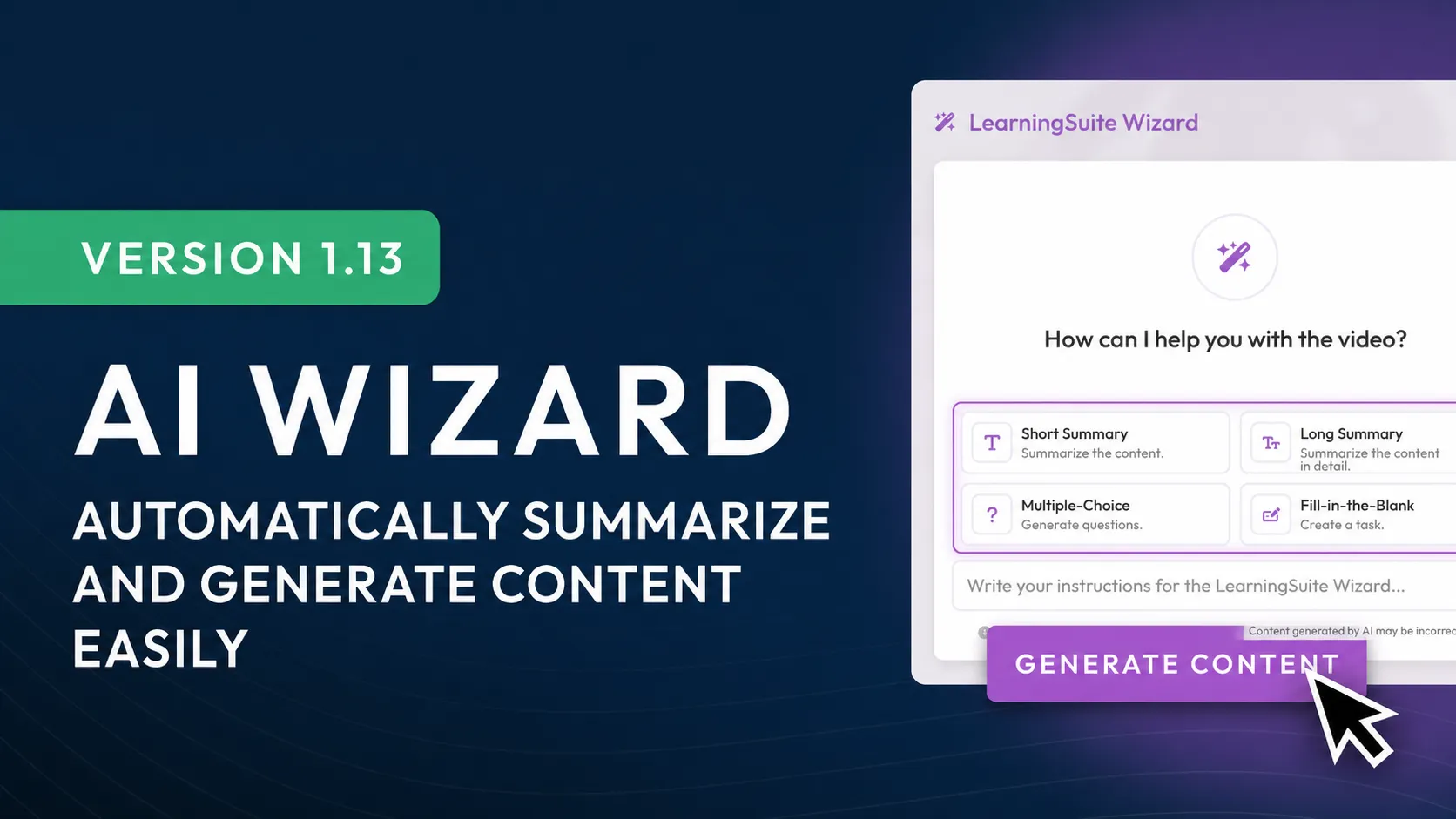
LearningSuite Wizard lets you automatically summarize video content and create multiple-choice elements and fill-in-the-blanks from it.
You can use it to create your learning content even more easily and quickly, alongside existing transcripts and subtitles.
How to Use LearningSuite Wizard:
1.) Activate the Feature
Under “Settings” and “AI Features & Transcripts,” you can select “Enable AI Features.” This is required.
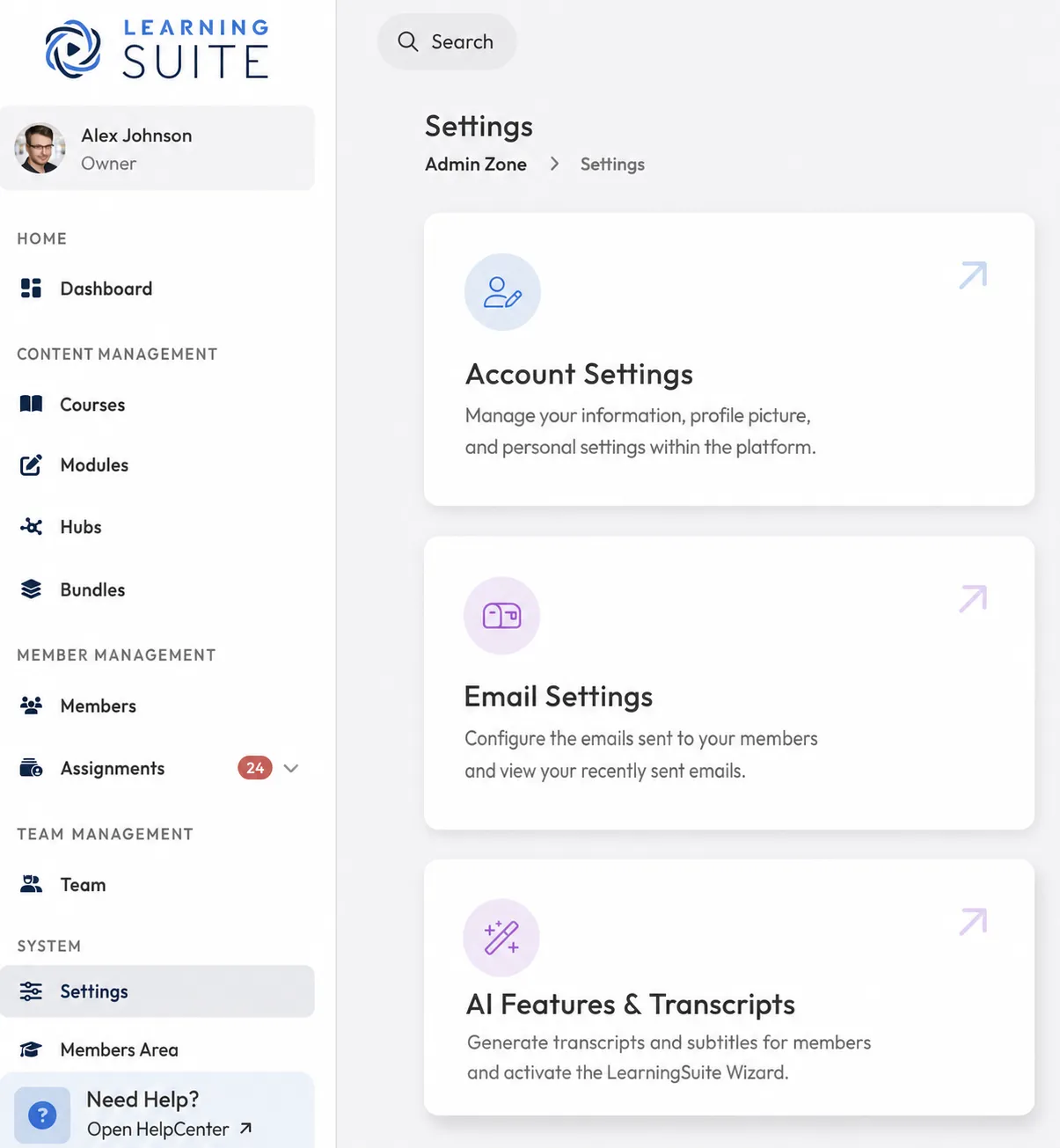
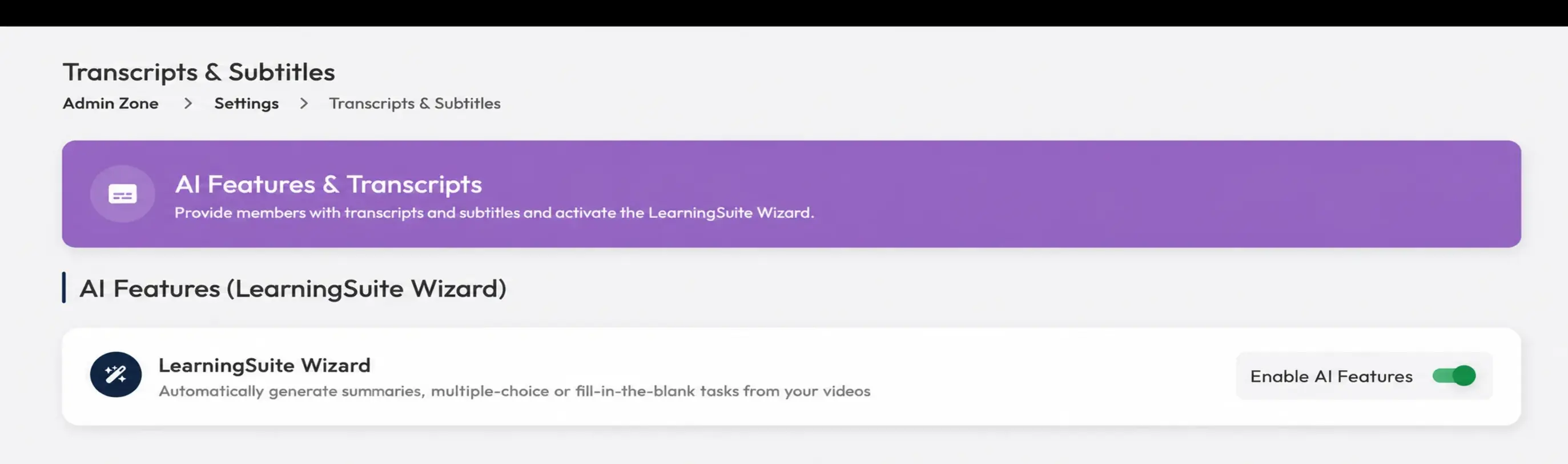
You also need to activate video transcription, which you’ll find further down on the same page.

2.) Use LearningSuite Wizard With a Video
If you’ve never used transcripts before, it may take some time before you can use the Wizard.
Transcripts are one of the requirements for using the Wizard to process video information.
You’ll then find the Wizard in a Lesson, at the top right of the video player:
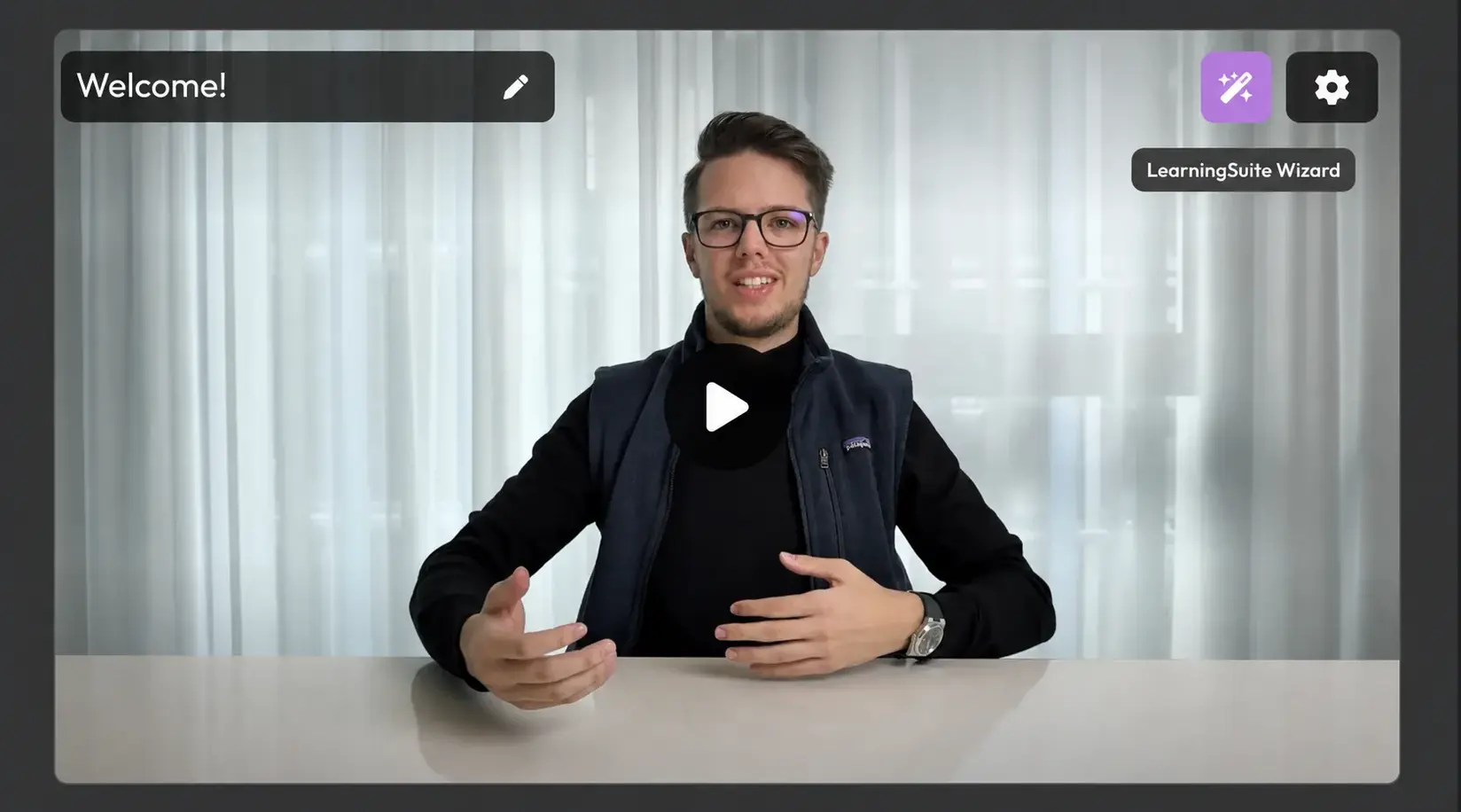
The Wizard is not visible to course users, only to platform administrators (owners, administrators, and course managers).
Use one of the available options to create content that’s directly relevant to you. In this example, we’re using the “Course Summary” option:
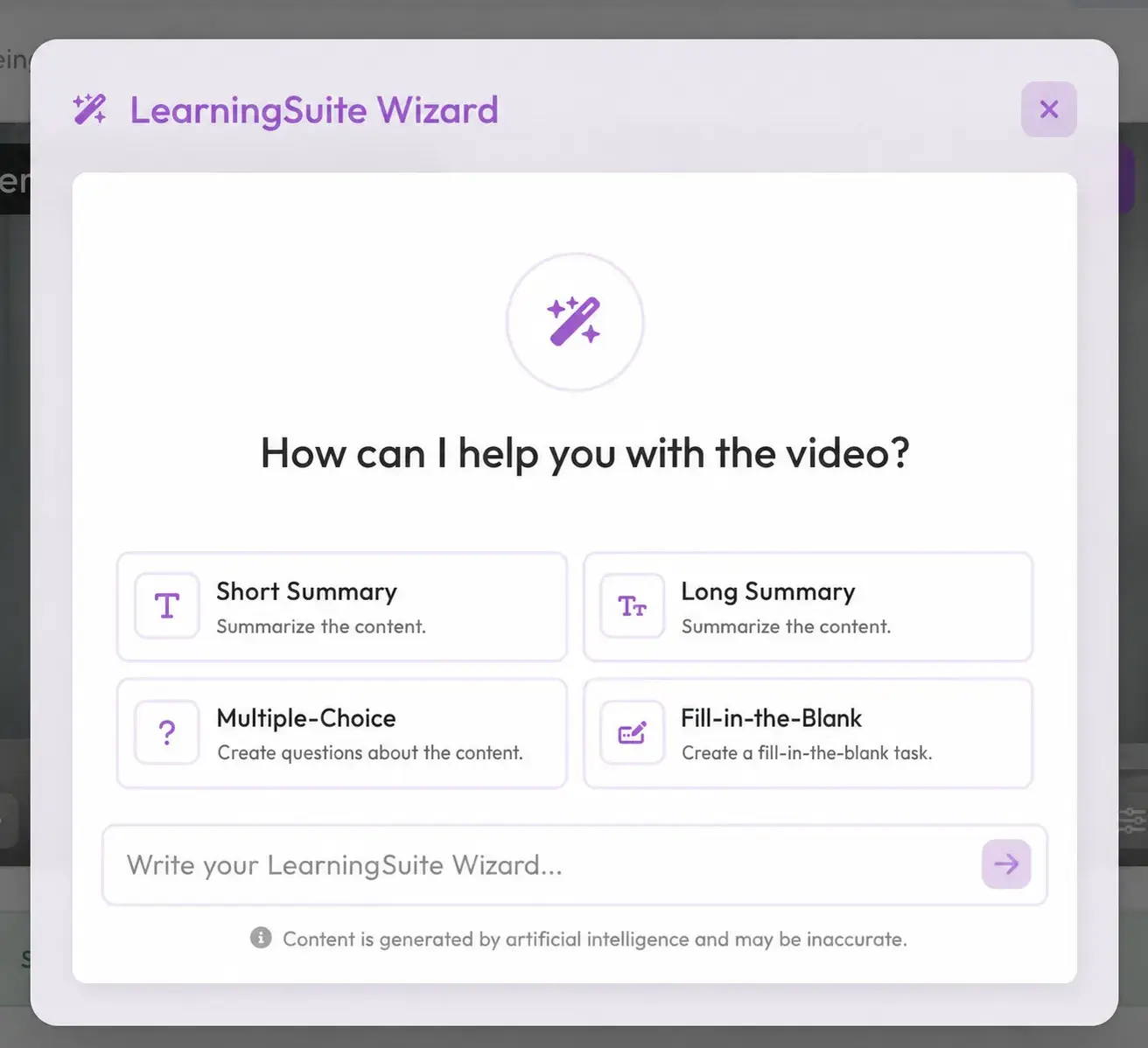
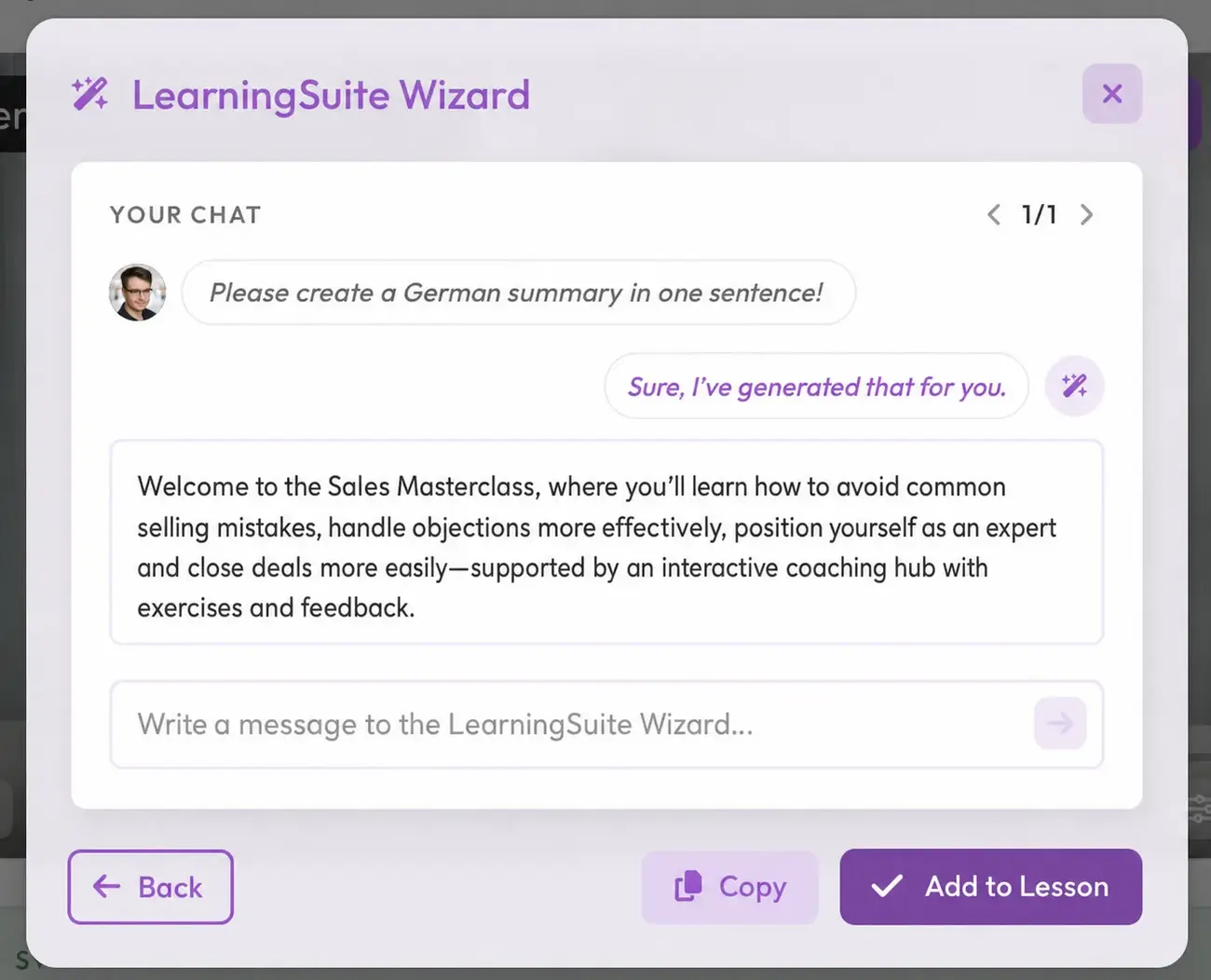
You can also give the Wizard your own instructions for generating text, then copy the response directly or insert it into a Lesson:
We hope you enjoy using this feature!
If you have any questions, feel free to contact us directly through the HelpCenter!